
Using multiple automation triggers
This is an EmailOctopus Pro feature. You will need to be on a paid EmailOctopus plan to access and use it.
You can add up to three triggers to a single automation. This way, your contacts can receive the same automation even if they meet different trigger conditions. See this guide for the full list of available triggers.
In this article:
- How to create a new automation with multiple triggers?
- How to add more triggers to my existing automation?
- Example use case for multiple triggers
How to create a new automation with multiple triggers?
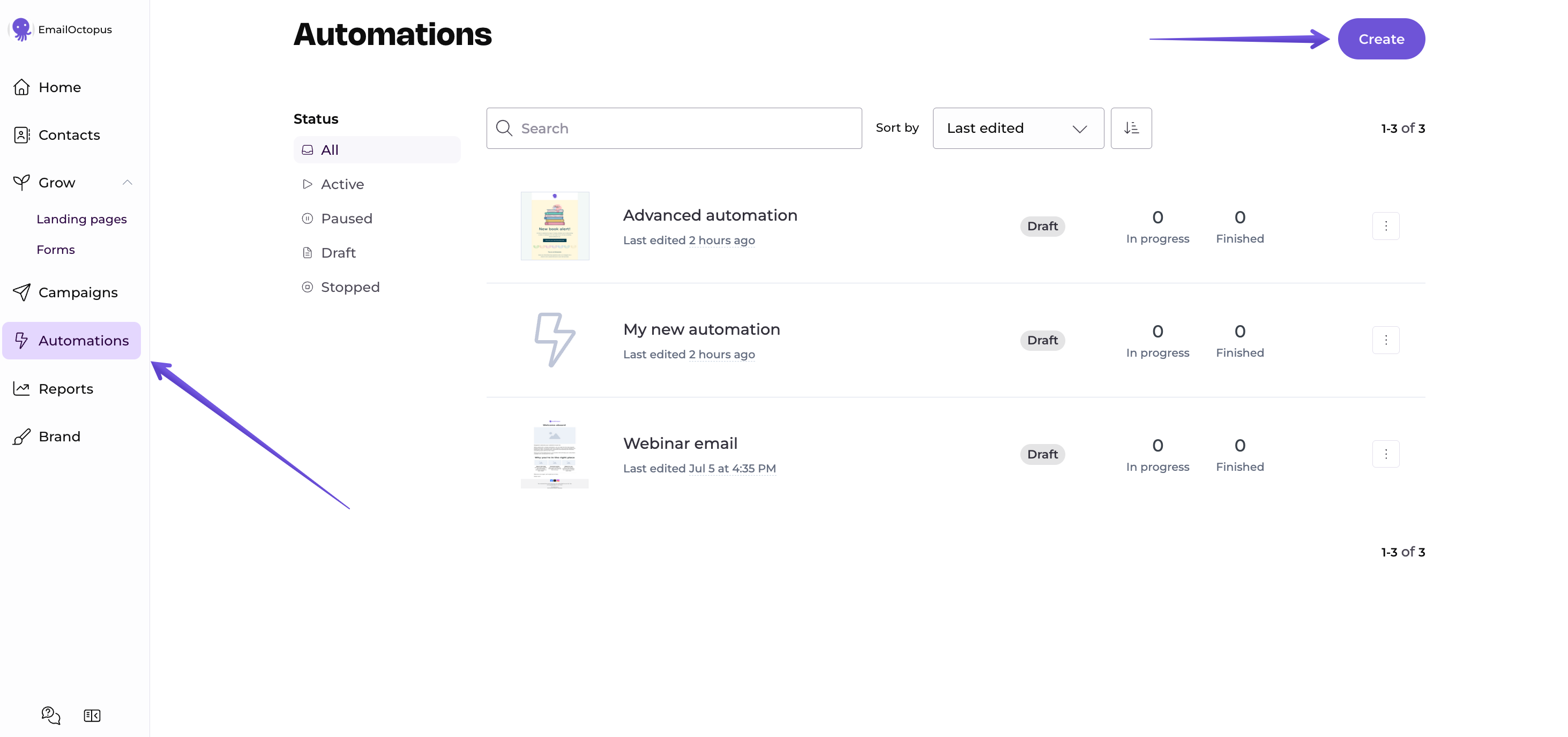
Click Automations in the sidebar, then click Create:
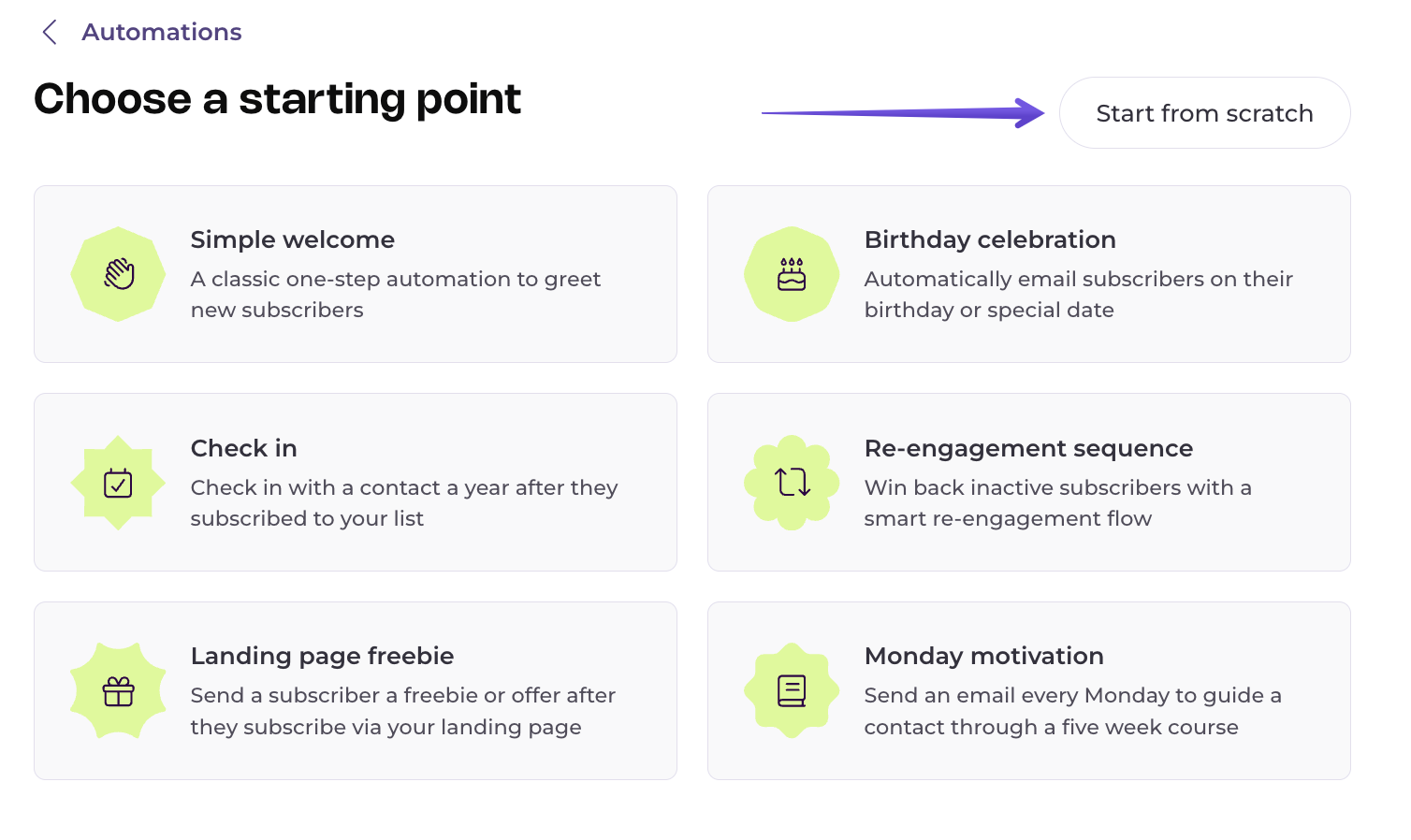
On the "Choose a starting point" screen, select Start from scratch:
You'll land on the Setup screen, where you can name your automation and set options like repeat behaviour and tracking. If you're not sure what those do, see this guide: How to create an advanced automation.
Once you're happy with the setup, click Next at the top right.
You will see a page prompting you to choose your first automation trigger. Let's go with "Contact added".
To add another trigger, click the plus icon next to your first trigger and choose one:
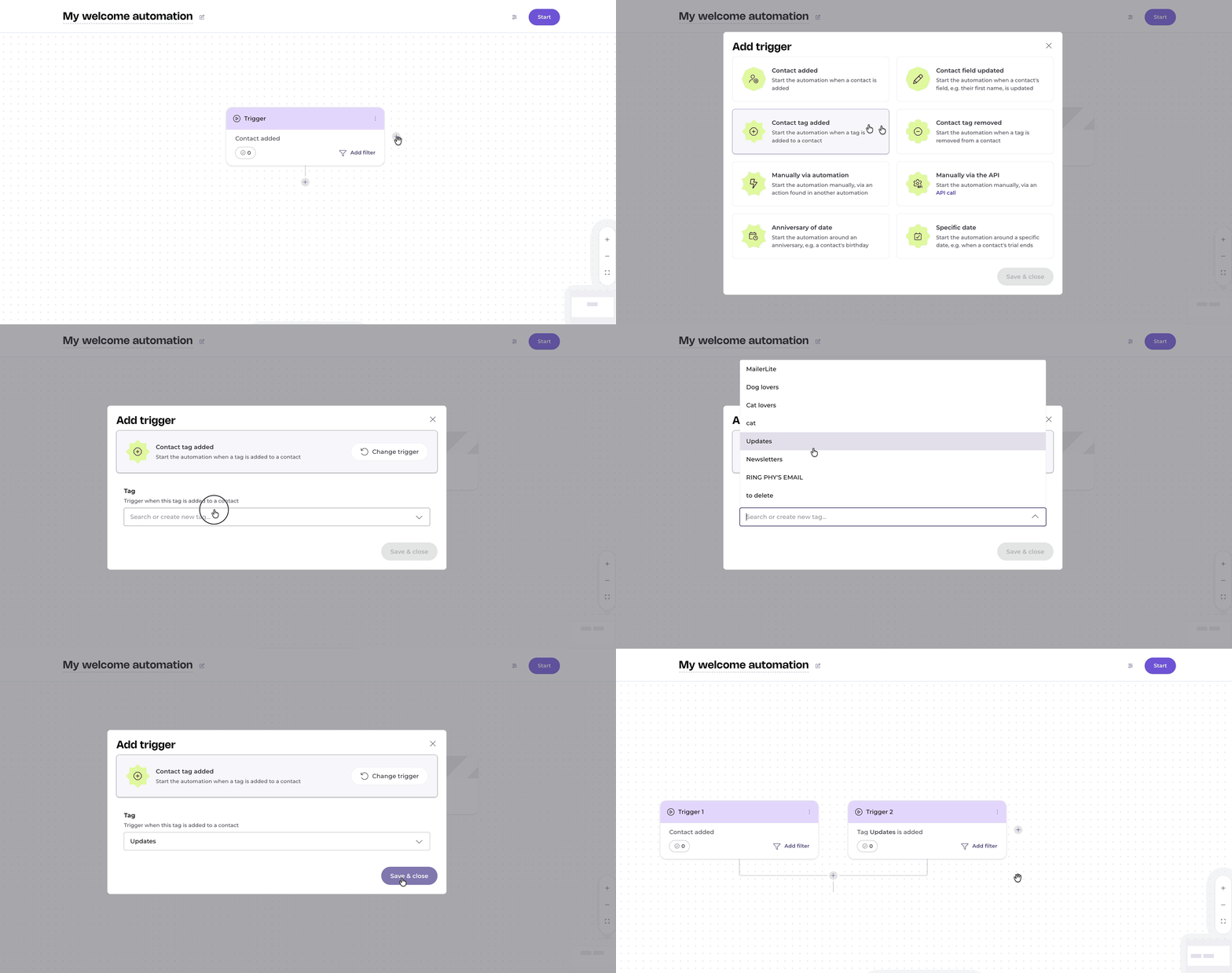
Your automation can have up to three triggers.
Keep building the rest of your automation, then click Start to activate it. Contacts who meet any of your triggers will enter the automation.
How to add more triggers to my existing automation?
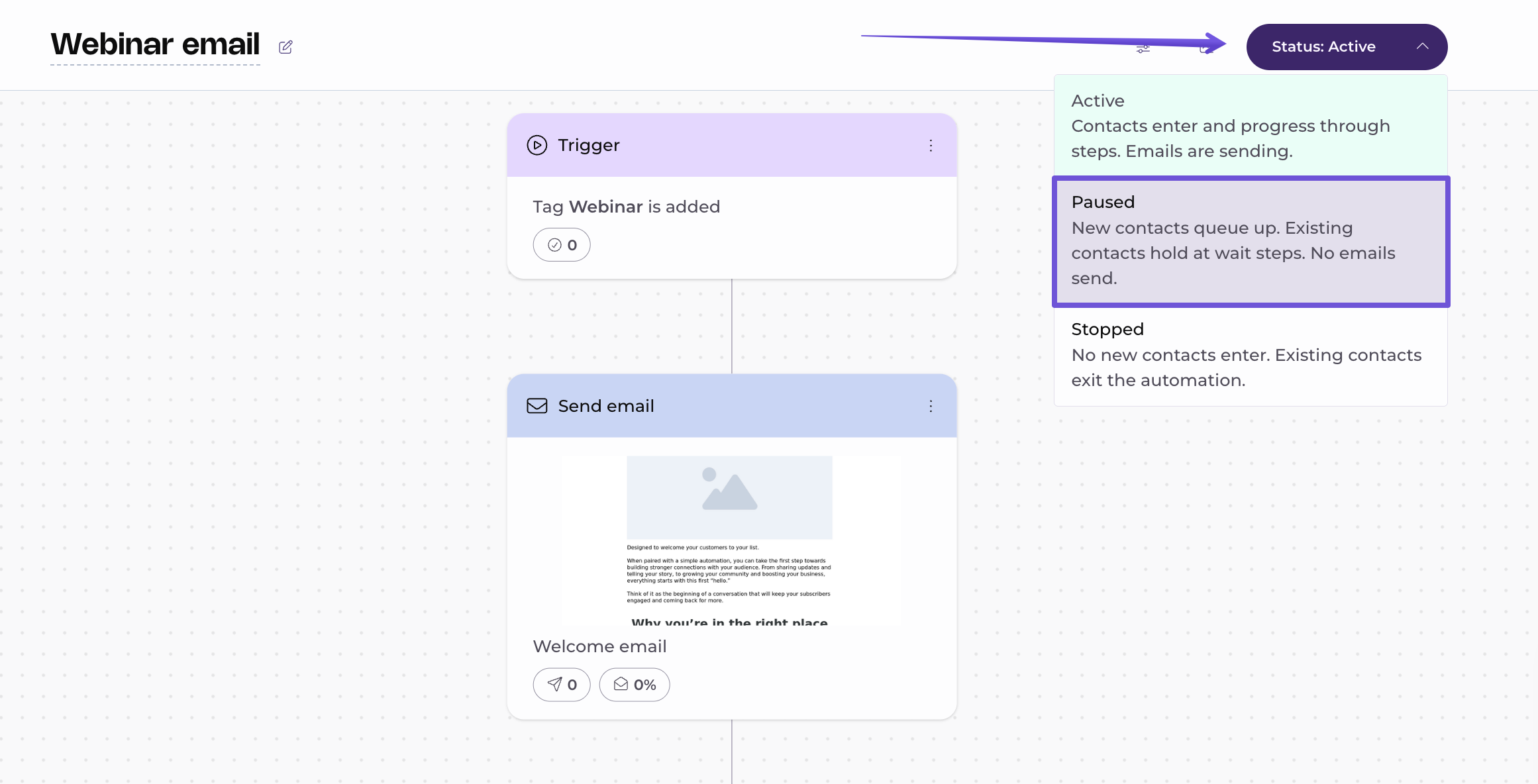
Open the automation editor and pause your automation so you can edit it:
Then, click the plus icon on the right side of your first trigger and choose another trigger:
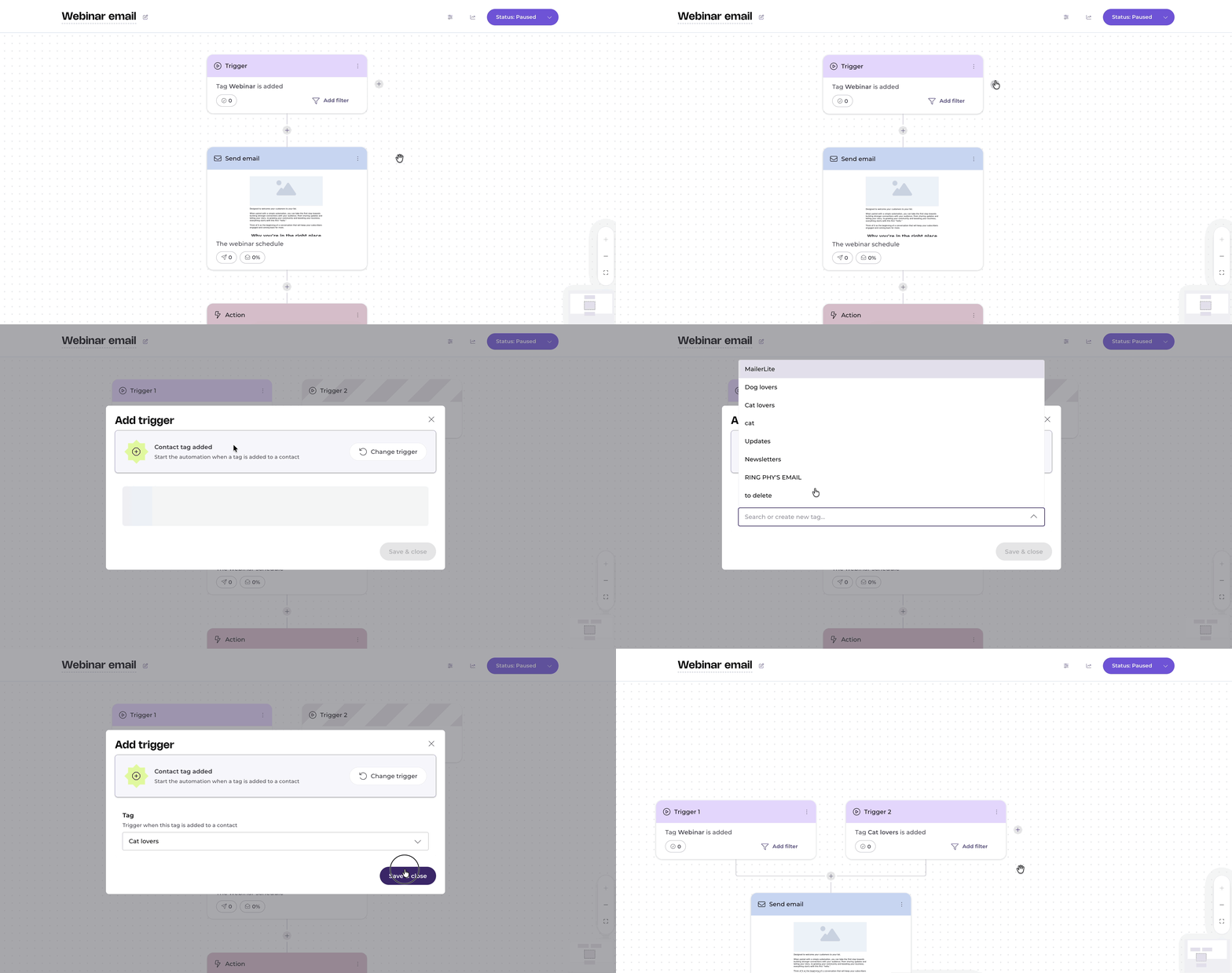
Your automation can have up to three triggers. Once ready, click reactivate your automation by clicking on the "Status" and changing it to "Active". Contacts who meet any of your triggers will now enter it.
Example use case for multiple triggers
Say you're a writer who wants to share a few short stories through an automation, and you have a sign-up form that adds a "short story interest" tag to anyone who fills it in. You want both brand new subscribers and existing contacts who fill out that form to get the same email series. In this case, you can use two automation triggers to cover both of those scenarios:
- Contact added – for people joining your list for the first time. Add a filter to only include new contacts with the "short story interest" tag, so only the right contacts come in.
- Tag added – for existing subscribers who fill out the form and get tagged.
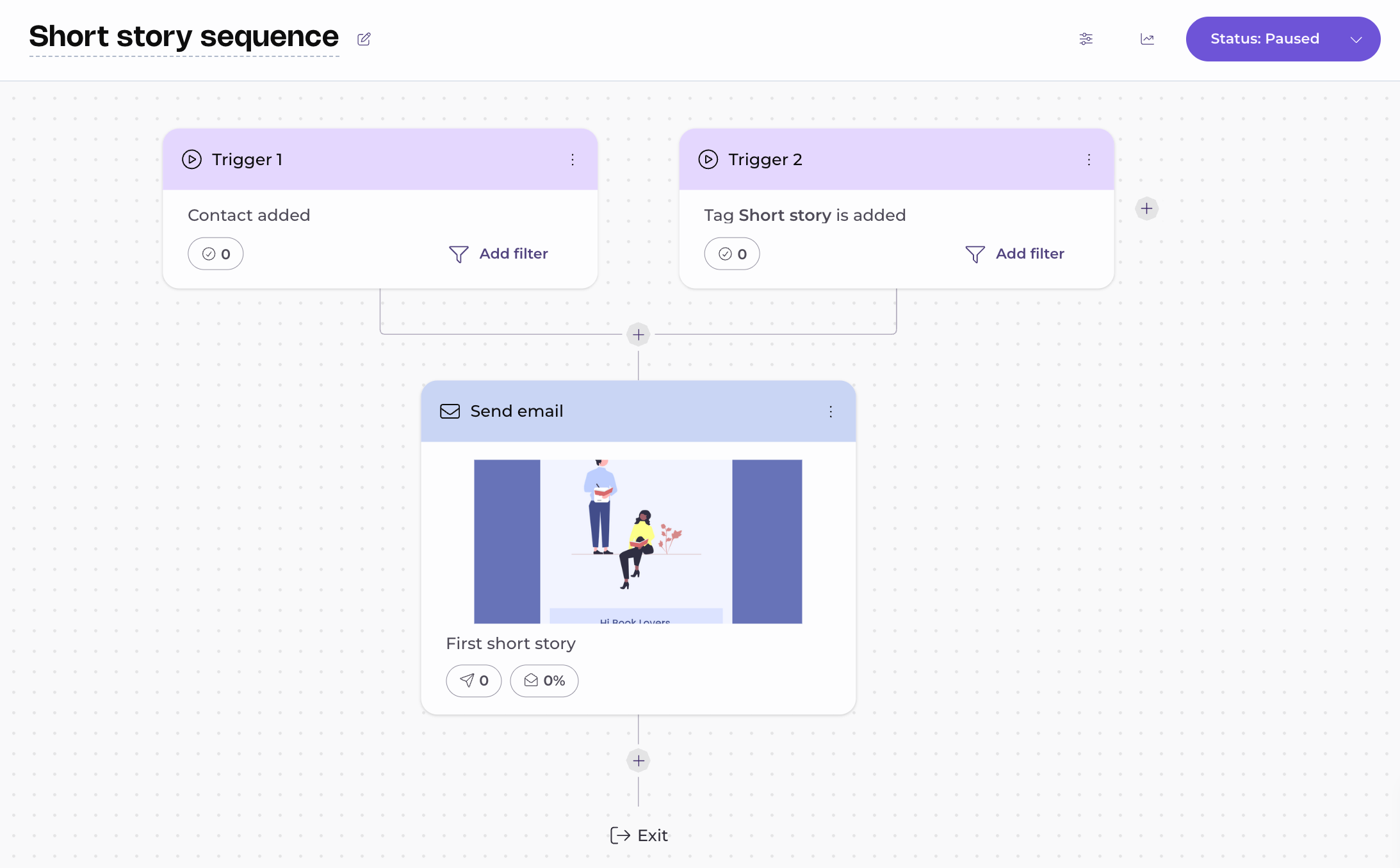
Now, both new and existing contacts who sign up through your form receive the same automation.
Each trigger has its own, separate filter option, so you can set each one of them to use different conditions.